Vroom! Scaling up Virtual Machines in vSphere to meet performance requirements–Part 2

In my original post, Scaling up Virtual Machines in vSphere to meet performance requirements, I described a unique need for the Software Development Team to have a lot of horsepower to improve the speed of their already virtualized code compiling systems.  My plan of attack was simple.  Address the CPU bound systems with more powerful blades, and scale up the VMs accordingly.  Budget constraints axed the storage array included in my proposal, and also kept this effort limited to keeping the same number of vSphere hosts for the task. 

The four new Dell M620 blades arrived and were quickly built up with vSphere 5.0 U2 (Enterprise Plus Licensing) with the EqualLogic MEM installed.  A separate cluster was created to insure all build systems were kept separate, and so that I didn’t have to mask any CPU features to make them work with previous generation blades.  Next up was to make sure each build VM was running VM hardware level 8.  Prior to vSphere 5, the guest VM was unaware of the NUMA architecture behind it.  Without the guest OS understanding memory locality, one could introduce problems into otherwise efficient processes.  While I could find no evidence that the compilers for either OS are NUMA aware, I knew the Operating Systems understood NUMA.

Each build VM has a separate vmdk for its compiling activities.  Their D:\ drive (or /home for Linux) is where the local sandboxes live.  I typically have this second drive on a “Virtual Device Node” changed to something other than 0:x.  This has proven beneficial in previous performance optimization efforts.

I figured the testing would be somewhat trivial, and would be wrapped up in a few days.  After all, the blades were purchased to quickly deliver CPU power for a production environment, and I didn’t want to hold that up.  But the data the tests returned had some interesting surprises.  It is not every day that you get to test 16vCPU VMs for a production environment that can actually use the power.  My home lab certainly doesn’t allow me to do this, so I wanted to make this count. 

Testing
The baseline tests would be to run code compiling on two of the production build systems (one Linux, and the other Windows) on an old blade, then the same set with the same source code on the new blades.  This would help in better understanding if there were speed improvements from the newer generation chips.  Most of the existing build VMs are similar in their configuration.  The two test VMs will start out with 4vCPUs and 4GB of RAM.  Once the baselines were established, the virtual resources of each VM would be dialed up to see how they respond.  The systems will be compiling the very same source code.

For the tests, I isolated each blade so they were not serving up other needs.  The test VMs resided in an isolated datastore, but lived on a group of EqualLogic arrays that were part of the production environment.  Tests were run at all times during the day and night to simulate real world scenarios, as well as demonstrate any variability in SAN performance.

Build times would be officially recorded in the Developers Build Dashboard.  All resources would be observed in vSphere in real time, with screen captures made of things like CPU, disk and memory, and dumped into my favorite brain-dump application; Microsoft OneNote.  I decided to do this on a whim when I began testing, but it immediately proved incredibly valuable later on as I found myself looking at dozens of screen captures constantly.

The one thing I didn’t have  time to test was the nearly limitless possible scenarios in which multiple monster VMs were contending for CPUs at the same time.  But the primary interest for now was to see how the build systems scaled.  I would then make my sizing judgments off of the results, and off of previous experience with smaller build VMs on smaller hosts. 

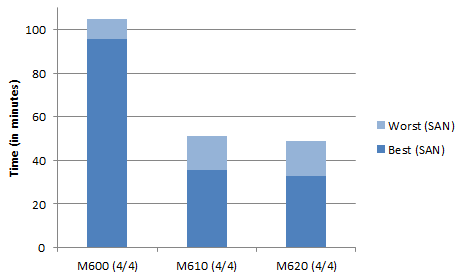
The [n/n] title of each test result column indicates the number of vCPUs followed by the amount of vRAM associated.  Stacked bar graphs show a lighter color at the top of each bar.  This indicates the difference in time between the best result and the worst result.  The biggest factor of course would be the SAN.

Bottleneck cat and mouse
Performance testing is a great exercise for anyone, because it helps challenge your own assumptions on where the bottleneck really is.  No resource lives as an island, and this project showcased that perfectly.  Improving the performance of these CPU bound systems may very well shift the contention elsewhere.  However, it may expose other bottlenecks that you were not aware of, as resources are just one element of bottleneck chasing.  Applications and the Operating Systems they run on are not perfect, nor are the scripts that kick them off.  Keep this in mind when looking at the results.

Test Results – Windows
The following are test results are with Windows 7, running the Visual Studio Compiler.  Showing three generations of blades.  The Dell M600 (HarperTown), M610, (Nehalem), and M620 (SandyBridge). 

Comparing a Windows code compile across blades without any virtual resource modifications.
image

Yes, that is right.  The old M600 blades were that terrible when it came to running VMs that were compiling.  This would explain the inconsistent build time results we had seen in the past.  While there was improvement in the M620 over the M610s, the real power of the M620s is that they have double the number of physical cores (16) than the previous generations.  Also noteworthy is the significant impact the SAN (up to 50%) was affecting the end result. 

Comparing a Windows code compile on new blade, but scaling up virtual resources

image

Several interesting observations about this image (above). 

  • When the SAN can’t keep up, it can easily give back the improvements made in raw compute power.
  • Performance degraded when compiling with more than 8vCPUs.  It was so bad that I quit running tests when it became clear they weren’t compiling efficiently (which is why you do not see SAN variability when I started getting negative returns)
  • Doubling the vCPUs from 4 to 8, and the vRAM from 4 to 8 only improved the build time by about 30%, even though the compile showed nearly perfect multithreading (shown below) and 100% CPU usage.  Why the degradation?  Keep reading!
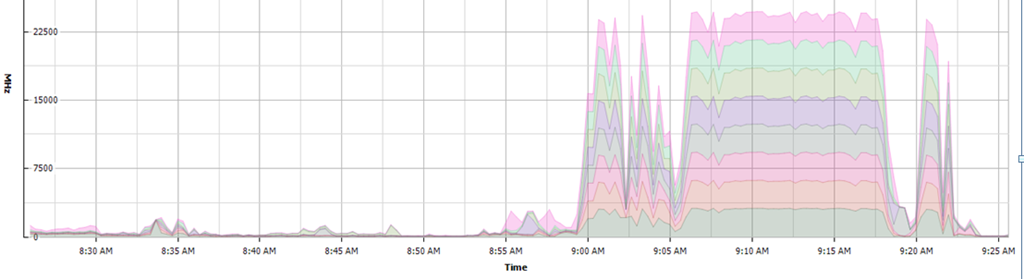
image

    On a different note, it was becoming quite clear already I needed to take a little corrective action in my testing.  The SAN was being overworked at all times of the day, and it was impacting my ability to get accurate test results in raw compute power.  The more samples I ran the more consistent the inconsistency was.  Each of the M620’s had a 100GB SSD, so I decided to run the D:\ drive (where the build sandbox lives) on there to see a lack of storage contention impacted times.  The purple line indicates the build times of the given configuration, but with the D:\ drive of the VM living on the local SSD drive.

image

The difference between a slow run on the SAN and a run with faster storage was spreading.

Test Results – Linux
The following are test results are with Linux, running the GCC compiler. Showing three generations of blades.  The Dell M600 (HarperTown), M610, (Nehalem), and M620 (SandyBridge).

Comparing a Linux code compile across blades without any virtual resource modifications.
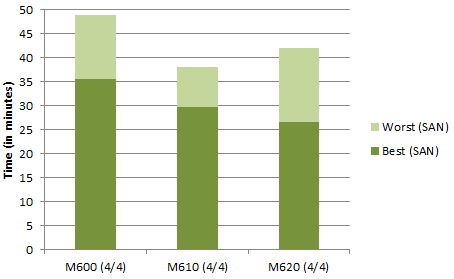
image

The Linux compiler showed a a much more linear improvement, along with being faster than it’s Windows counterpart.  Noticeable improvements across the newer generations of blades, with no modifications in virtual resources.  However, the margin of variability from the SAN is a concern.

Comparing a Linux code compile on new blade, but scaling up virtual resources

image

At first glance it looks as if the Linux GCC compiler scales up well, but not in a linear way.  But take a look at the next graph, where similar to the experiment with the Windows VM, I changed the location of the vmdk file used for the /home drive (where the build sandbox lives) over to the local SSD drive.
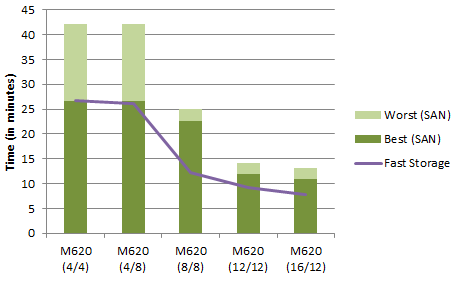
image

This shows very linear scalability with Linux and a GCC compiler.  A 4vCPU with 4GB RAM was able to compile 2.2x faster with 8vCPUs and 8GB of RAM.  Total build time was just 12 minutes.  Triple the virtual resources to 12/12, and it is an almost linear 2.9x faster than the original configuration.  Bump it up to 16vCPUs, and diminishing returns begin to show up, where it is 3.4x faster than the original configuration.  I suspect crossing NUMA nodes and the architecture of the code itself was impacting this a bit.  Although, don’t lose sight of the fact that a  build that could take up to 45 minutes on the old configuration took only 7 minutes with 16vCPUs.

The big takeaways from these results are the differences in scalability in compilers, and how overtaxed the storage is.  Lets take a look at each one of these.

The compilers
Internally it had long been known that Linux compiled the same code faster than Windows.  Way faster.  But for various reasons it had been difficult to pinpoint why.  The data returned made it obvious.  It was the compiler.

image

While it was clear that the real separation in multithreaded compiling occurred after 8vCPUs, the real problem with the Windows Visual Studio compiler begins after 4vCPUs.  This surprised me a bit because when monitoring the vCPU usage (in stacked graph format) in vCenter, it was using every CPU cycle given to it, and multithreading quite evenly.  The testing used Visual Studio 2008, but I also tested newer versions of Visual Studio, with nearly the same results. 

Storage
The original proposal included storage to support the additional compute horsepower.  The existing set of arrays had served our needs very well, but were really targeted at general purpose I/O needs with a focus of capacity in mind.  During the budget review process, I had received many questions as to why we needed a storage array.  Boiling it down to even the simplest of terms didn’t allow for that line item to survive the last round of cuts.  Sure, there was a price to pay for the array, but the results show there is a price to pay for not buying the array.

I knew storage was going to be an issue, but when contention occurs, its hard to determine how much of an impact it will have.  Think of a busy freeway, where throughput is pretty easy to predict up to a certain threshold.  Hit critical mass, and predicting commute times becomes very difficult.  Same thing with storage.  But how did I know storage was going to be an issue?  The free tool provided to all Dell EqualLogic customers; SAN HQ.  This tool has been a trusted resource for me in the past, and removes ALL speculation when it comes to historical usage of the arrays, and other valuable statistics.  IOPS, read/write ratios, latency etc.  You name it. 

Historical data of Estimated Workload over the period of 1 month

image

Historical data of Estimated Workload over the period of 12 months

image

Both images show that with the exception of weekends, the SAN arrays are maxed out to 100% of their estimated workload.  The overtaxing shows up on the lower part of each screen capture the read and writes surpassing the brown line indicating the estimated maximum IOPS of the array.  The 12 month history showed that our storage performance needs were trending upward.

Storage contention and how it relates to used CPU cycles is also worth noting.  Look at how inadequate storage I/O influences compute. The image below shows the CPU utilization for one of the Linux builds using 8vCPUs and 8GB RAM when the /home drive was using fast storage (the local SSD on the vSphere host)
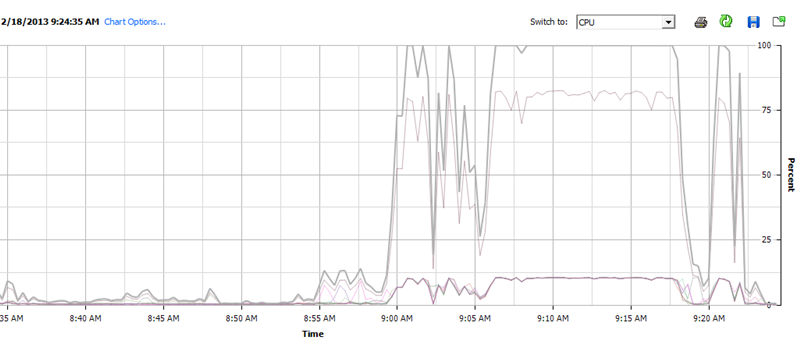
image

Now look at the same build when running  against a busy SAN array.  It completely changes the CPU usage profile, and thus took 46% longer to complete.

image

General Observations and lessons

  • If you are running any hosts using pre-Nehalem architectures, now is a good time to question why. They may not be worth wasting vSphere licensing on. The core count and architectural improvements on the newer chips put the nails in the coffin on these older chips.
  • Storage Storage Storage. If you have CPU intensive operations, deal with the CPU, but don’t neglect storage. The test results above demonstrate how one can easily give back the entire amount of performance gains in CPU by not having storage performance to support it.
  • Giving a Windows code compiling VM a lot of CPU, but not increasing the RAM seemed to make the compiler trip on it’s own toes.  This makes sense, as more CPUs need more memory addresses to work with. 
  • The testing showcased another element of virtualization that I love. It often helps you understand problems that you might otherwise be blind to. After establishing baseline testing, I noticed some of the Linux build systems were not multithreading the way they should. Turns out it was some scripting errors by our Developers. Easily corrected.

Conclusion
The new Dell M620 blades provided an immediate performance return.  All of the build VMs have been scaled up to 8vCPUs and 8GB of RAM to get the best return while providing good scalability of the cluster.  Even with that modest doubling of virtual resources, we now have nearly 30 build VMs that when storage performance is no longer an issue, will run between 4 and 4.3 times faster than the same VMs on the old M600 blades.  The primary objective moving forward is to target storage that will adequately support these build VMs, as well as looking into ways to improve multithreaded code compiling in Windows.

Helpful Links
Kitware blog post on multithreaded code compiling options

http://www.kitware.com/blog/home/post/434
Using a Synology NAS as an emergency backup DNS server for vSphere

Powering up a highly virtualized infrastructure can sometimes be an interesting experience.  Interesting in that “crossing-the-fingers” sort of way.  Maybe it’s an outdated run book, or an automated power-on of particular VMs that didn’t occur as planned.  Sometimes it is nothing more than a lack of patience between each power-on/initialization step.  Whatever the case, if it is a production environment, there is at least a modest amount of anxiety that goes along with this task.  How often does this even happen?  For those who have extended power outages, far too often.

One element that can affect power-up scenarios is availability of DNS.  A funny thing happens though when everything is virtualized.  Equipment that powers the infrastructure may need DNS, but DNS is inside of the infrastructure that needs to be powered up.  A simple way around this circular referencing problem is to have another backup DNS server that supplements your normal DNS infrastructure.  This backup DNS server acts as a slave to the server having authoritative control for that DNS zone, and would handle at minimum recursive DNS queries for critical infrastructure equipment, and vSphere hosts.  While all production systems would use your normal primary and secondary DNS, this backup DNS server could be used as the secondary name server a few key components:

  • vSphere hosts
  • Server and enclosure Management for IPMI or similar side-band needs
  • Monitoring nodes
  • SAN components (optional)
  • Switchgear (optional)

vSphere certainly isn’t as picky as it once was when it comes to DNS.  Thank goodness.  But guaranteeing immediate availability of name resolution will help your environment during these planned, or unplanned power-up scenarios.  Those that do not have to deal with this often have at least one physical Domain Controller with integrated DNS in place.  That option is fine for many organizations, and certainly accomplishes more than just availability of name resolution.  AD design is a pretty big subject all by itself, and way beyond the scope of this post.  But running a spare physical AD server isn’t my favorite option for a number of different reasons, especially for smaller organizations.  Some folks way smarter than me might disagree with my position.  Here are a few reasons why it isn’t my preferred option.

  • One may be limited in Windows licensing
  • There might be limited availability of physical enterprise grade servers.
  • One may have no clue as to if, or how a physical AD server might fit into their DR strategy.

As time marches on, I also have a feeling that this approach will be falling out of favor anyway.  During a breakout session for optimizing virtualized AD infrastructures at the 2012 VMWorld, it was interesting to hear that the VMware Mothership still has some physical AD servers running the PDCe role.  However, they were actively in the process of eliminating this final, physical element, and building recommendations around doing so.  And lets face it, a physical DC doesn’t align with the vision of elastic, virtualized datacenters anyway.

To make DNS immediately available during these power-up scenarios, the prevailing method in the “Keep it Simple Stupid” category has been running a separate physical DNS server.  Either a Windows member server with a DNS role, or a Linux server with BIND.  But it is a physical server, and us virtualization nuts hate that sort of thing.  But wait!  …There is one more option.  Use your Synology NAS as an emergency backup DNS server.  The intention of this is not to supplant your normal DNS infrastructure. it’s simply to help a few critical pieces of equipment start up.

The latest version of Synology’s DSM (4.1) comes with a beta version of a DNS package.  It is pretty straight forward, but I will walk you through the steps of setting it up anyway.

1.  Verify that your Windows DNS servers allow to transfer to the IP address of the NAS.  Jump into the Windows Server DNS MMC snap in, highlight the zone you want to setup a zone transfer to, and click properties.  Add or verify that the settings allow a zone transfer to the new slave server

2.  In the Synology DSM, open the Package Center, and install DNS package.

3.  Enable Synology DSM Firewall to allow for DNS traffic.  In the Synology DSM, open the Control Panel > Firewall.  Highlight the interface desired, and click Create.  Choose “Select from a built in list of applications” and choose “DNS Server”  Save the rule, and exit out of the Firewall application.

4.  Open up “DNS Server” from the Synology launch menu.

image

5.  Click on “Zones” and click Create > Slave Zone.  Choose a “Forward Zone” type, and select the desired domain name, and Master DNS server

image

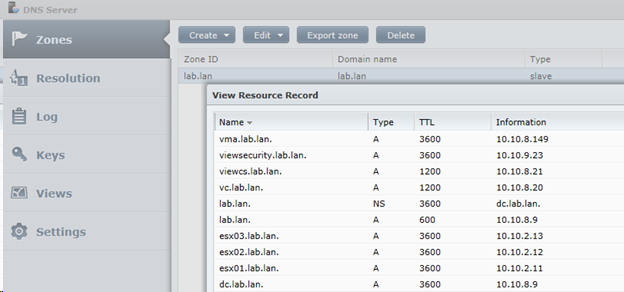
6.  Verify the population of recourse records by selecting the new zone, clicking Edit > Resource Records.

image

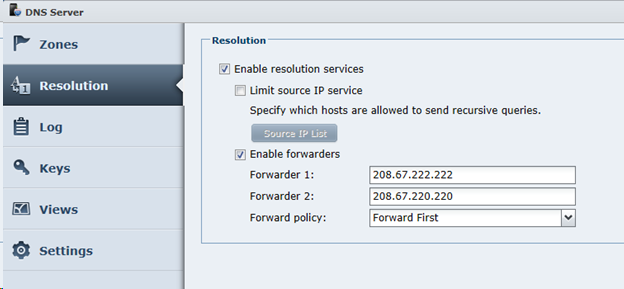
7.  If you want, or need to have this forward DNS requests, enable the forwarders checkbox. (In my Home Lab, I enable this.  In my production environment, I do not)

image

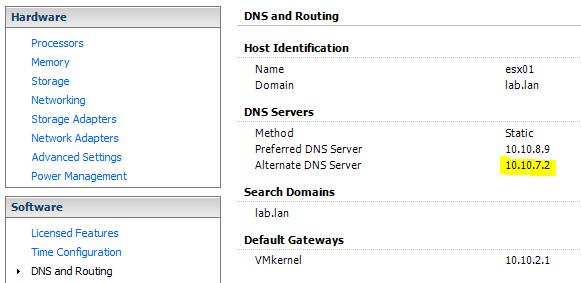
8.  Complete the configuration, and test with a client using this IP address only for DNS, simply to verify that it is operating correctly.  Then, go back and tighten up some of the security mechanisms as you see fit.  Once that is completed, jump back into your ESXi hosts (and any other equipment) and configure your secondary DNS to use this server.

image

In my case, I had my Synology NAS to try this out in my home lab, as well as newly deployed unit at work (serving the primary purpose of a Veeam backup target).  In both cases, it has worked exactly as expected, and allowed me to junk an old server at work running BIND.

If the NAS lived on an isolated storage network that wasn’t routable, then this option wouldn’t work, but if you have one living on a routable network somewhere, then it’s a great option.  The arrangement simplifies the number of components in the infrastructure while insuring service availability.

Even if you have multiple internal zones, you may want to have this slave server only handling your primary zone.  No need to make it more complicated than it needs to be.  You also may choose to set up the respective reverse lookup zone as a slave.  Possible, but not necessary for this purpose.

There you have it.  Nothing ground breaking, but a simple way to make a more resilient environment during power-up scenarios.

Helpful Links:

VMWorld 2012.  Virtualizing Active Directory Best Practices (APP-BCA1373).  (Accessible by VMWorld attendees only)
http://www.vmworld.com/community/sessions/2012/

Vroom! Scaling up Virtual Machines in vSphere to meet performance requirements

image

A typical conversation with one of our Developers goes like this.  “Hey, that new VM you gave us is great, but can you make it say, 10 times faster?”   Another day, and another request by our Development Team to make our build infrastructure faster.  What is a build infrastructure, and what does it have to do with vSphere?  I’ll tell you…

Software Developers have to compile, or “build” their source code before it is really usable by anyone. Compiling can involve just a small bit of code, or millions of lines. Developers will often perform builds on their own workstations, as well as designated “build” systems. These dedicated build systems are often part of a farm of systems that are churning out builds by fixed schedule, or on demand.  Each might be responsible for different products, platforms, versions, or build purposes.  This can result in dozens of build machines.  Most of this is orchestrated by a lot of scripting or build automation tools.  This type of practice is often referred to as Continuous Integration (CI), and are all driven off of Test Driven Development and Lean/Agile Development practices.

In the software world, waiting for builds is wasting money. Slower turn around time, and longer cycles leave less time or willingness to validate that changes to the code didn’t’ break anything.  So there is a constant desire to make all of this faster.

Not long after I started virtualizing our environment, I demonstrated the benefits of virtualizing our build systems. Often times the physical build systems were on tired old machines lacking uniformity, protection, revision control, or performance monitoring. That is not exactly a desired recipe for business critical systems. We have benefited in so many ways with these systems being virtualized. Whether it is cloning a system in just a couple of minutes, or knowing they replicated offsite without even thinking about it. 

But one problem. Code compiling takes CPU. Massive amounts of it. It has been my observation that nothing makes better use of parallelizing with multiple cores better than compilers.  Many applications simply aren’t able to multi-thread, while other applications can, but don’t do it very well – including well known enterprise application software.  Throw the right command line switch on a compiler, and it will peg out your latest rocket of a workstation.

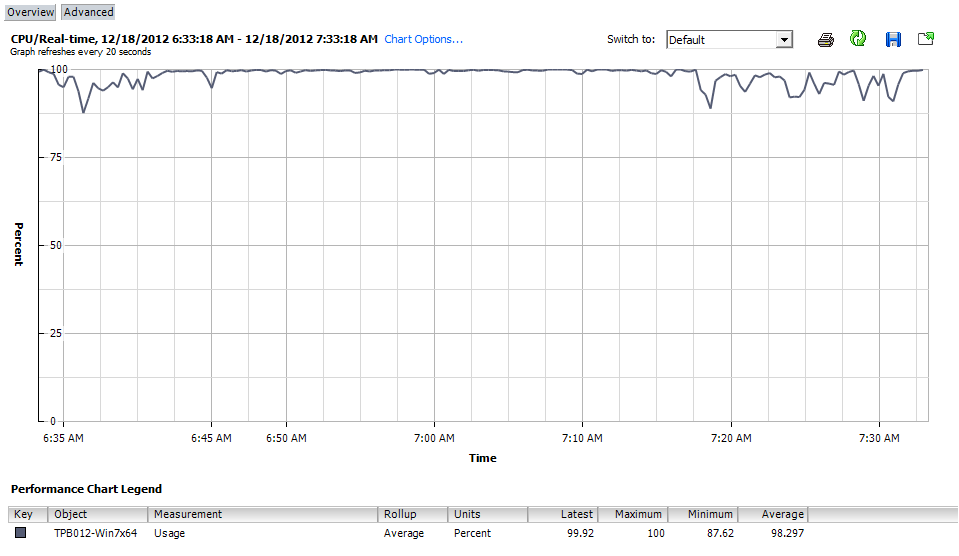
Take a look below.  This is a 4vCPU VM.  That solid line pegged at 100% nearly the entire time is pretty much the way the system will run during the compile.  There are exceptions, as tasks like linking are single threaded.  What you see here can go on for hours at a time.

image

This is a different view of that same VM above, showing a nearly perfect distribution of threading across the vCPUs assigned to the VM.

image

So, as you can see, the efficiency of the compilers actually present a bit of a problem in the virtualized world.  Lets face it, one of the values virtualization provides is the unbelievable ability to use otherwise wasted CPU cycles for other systems that really need it.  But what happens if you really need it?  Well, consolidation ratios go down, and sizing becomes really important.

Compiling from source code can involve handling literally millions of little tiny files.  You might think there is a ton of disk activity.  There certainly can be I/O, but it is rarely disk bound.  This stuck out loud and clear after some of the Developer’s physical workstations had SSDs installed.  After an initial hiccup with some bad SSDs, further testing showed almost no speed improvement.  Looking at some of the performance data on those workstations showed that SSDs had no affect because the systems were always CPU bound.

Even with the above, some evidence suggests that the pool of Dell EqualLogic arrays (PS6100 and PS600) used in this environment were nearing their performance thresholds.  Ideally, I would like to incorporate the EqualLogic hybrid array.  The SSD/SAS combo would give me the IOPS needed if I started running into I/O issues.  Unfortunately, I have to plan for incorporating this into the mix perhaps a bit later in the year.

RAM for each build system is a bit more predictable.  Most systems are not memory hogs when compiling.  4 to 6 Gigabytes of RAM used during a build is quite typical.  Linux has a tendency to utilize it more if it has it available, especially when it comes to file IO.

The other variable is the compiler.  Windows platforms may use something like Visual Studio, while Linux will use a GCC compiler.  The differences in performance can be startling.  Compile the exact same source code on two machines with the exact same specs, with one running Windows/Visual Studio, and the other running Linux/GCC, and the Linux machine will finish the build in 1/3rd the time.  I can’t do anything about that, but it is a worthy data point when trying to speed up builds.

The Existing Arrangement
All of the build VMs (along with the rest of the VMs) currently run in a cluster of 7 Dell M6xx blades inside a Dell M1000e enclosure.  Four of them are Dell M600s with dual socket, Harper Town based chips.  Three others are Dell M610s running Nehalem chips.  The Harper Town chips didn’t support hyper threading, so in vSphere, that means it will see just a total of 8 logical cores.  The Nehalem based systems show 16 logical cores.

All of the build systems (25 as of right now, running a mix of Windows and Linux) run no greater than 4vCPUs.  I’ve held firm on this limit of going no greater than 50% of the total physical core count of a host.  I’ve gotten some heat from it, but I’ve been rewarded with very acceptable CPU Ready times.  After all, this cluster had to support the rest of our infrastructure as well.  By physical workstation standards (especially expensive Development workstations), they are pathetically slow.  Time to do something about it.

The Plan
The plan is simple.  Increase CPU resources.  For the cluster, I could either scale up (bigger hosts) or scale out (more hosts).  In my case, I was really limited on the capabilities on the host, plus, I wanted to refrain from buying more vSphere licenses unless I had to, so it was well worth it to replace the 4 oldest M600 blades (using Intel Harper Town chips).  The new blades, which will be Dell M620s, will have 192GB of RAM versus just 32GB in the old M600s.  And lastly, in order to take advantage of some of the new chip architectures in the new blades, I will be splitting this off into a dedicated 4 host cluster.

  New M620 Blades Old M600 Blades
Chip Intel Xeon E5-2680 Intel Xeon E5430
Clock Speed 2.7GHz (or faster) 2.66GHz
# of physical cores 16 8
# of logical cores 32 8
RAM 192 GB 32 GB

The new blades will have dual 8 core Sandy Bridge processors, giving me 16 physical cores, and 32 logical cores with hyper threading for each host. This is double the physical cores, and 4 times the logical cores against the older hosts. I will also be paying the premium price for clock speed. I rarely get the fastest clock speed of anything, but in this case, it can truly make a difference.

I have to resist throwing in the blades and just turning up the dials on the VMs.  I want to understand to what level I will be getting the greatest return.  I also want to see to what level does the dreaded CPU Ready value start cranking up.  I’m under no illusion that a given host only has so many CPU cycles, no matter how powerful it is.  But in this case, it might be worth tolerating some degree of contention if it means that the majority of time it finishes the builds some measurable amount faster.

So how powerful can I make these VMs?  Do I dare go past 8 vCPUs?  12 vCPUs?  How about 16?  Any guesses?  What about NUMA, and the negative impact that might occur if one goes beyond a NUMA node?  Stay tuned!  …I intend to find out. 

SSDs in the workplace. Trust, but verify

Most of my interests, duties, and responsibilities surround infrastructure.  Virtualization, storage, networking, and the architecture of it all.  Ask me about the latest video card out there, and not only will I probably not know about it, I might not care.  Eventually problems crop up on the desktop though, and the hands have to get dirty.  This happened to me after some issues arose over recently purchased SSD drives.

The Development Team wanted SSDs to see if they could make their high end workstations compile code faster.  Sounded reasonable to me, but the capacity and price point just hadn’t been there until recently.  When it was decided to move forward on the experiment, my shortlist of recommended drives was very short.  I specifically recommended the Crucial M4 line of SSDs.  There are a number of great SSD drives out there, but the M4 has a good reputation, and also sits in my workstation, my laptop, and my NAS in my home lab.  I was quite familiar with the performance numbers they were capable of.

It didn’t take long to learn that that through a series of gaffes, what was ultimately ordered, delivered, and installed on those Developer workstations were not the Crucial M4 SSD drives that have such a good reputation, but the Crucial V4 drives.  The complaints were quite startling.  Code compile times increasing significantly.  In fact, more than doubling over their spinning disk counterparts.  When you have cries to bring back the 7200RPM SATA drives, there must be a problem.   It was time to jump into the fray to see what was up.  The first step was to simply verify that the disks were returning expected results. 

The testing
I used the venerable Iometer for testing, and set it to the following conditions.

  • Single Worker, running for 5 minutes
  • 80000000 Sectors
  • 64 Outstanding I/Os
  • 8KB block size
  • 35% write / 65% read
  • 60% random / 40% sequential
    Each test was run three times, then averaged. Just like putting a car on a Dyno to measure horsepower, the absolute numbers generated was not of tremendous interest to me. Environmental conditions can affect this too much.  I was looking at how these performance numbers related to each other.

For the sake of clarity, I’ve simplified the list of test systems to the following:

  • PC1 = New Dell Precision M6600 laptop.  Includes Crucial M4 SSD and 7200 RPM SATA drive
  • PC2 = Older Dell Precision T3400 workstation.  Includes Crucial V4 SSD and 7200  RPM SATA drive
  • PC3 = New Dell Precision T5500 workstation.  Includes Crucial V4 SSD and 7200 RPM SATA drive
  • VM = A VM in a vSphere 5.0 cluster against an EqualLogic PS6100 array with 7200 RPM SATA drives
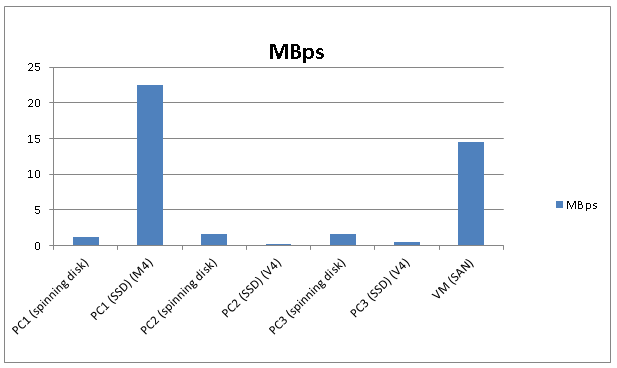
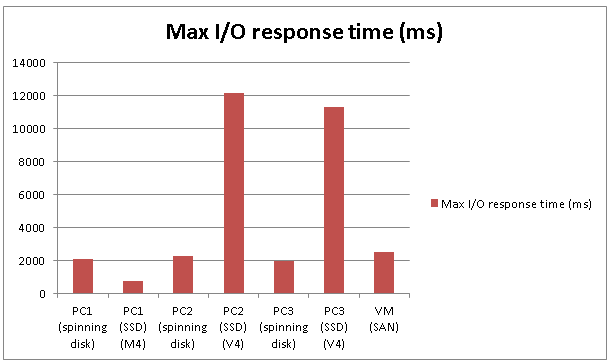
    I also tested under different settings (block sizes, etc.), but the results were pretty consistent.  Something was terribly wrong with the Crucial V4 SSDs. Or, they were just something terrible.

The results
Here are the results.

For the first two charts, the higher the number, the better.

image

image

For the next two charts, the lower the number, the better

image

image

You might be thinking this is an unfair test because they are comparing different systems.  This was done to show it wasn’t one system demonstrating the miserable performance results of the V4.  So, just to pacify curiosity, here are some results of the same tests on a system that had the V4, then was swapped out with the M4.

For the blue numbers, the higher the better.  For the red numbers, the lower the better.

image

If one looks on the specs between the M4 and V4, there is nothing too unexpected.  Sure, one is SATA II while the other is SATA III.  But the results speak for themselves.  This was not an issue of bus speed.  The performance of the M4 drives were very good; exactly as expected.  The performance of the V4 drives were terrible – far worse than anything I’ve seen out of an SSD.  This isn’t a one off “bad drive” situation either, as there are a bag full of them that perform the same way.  They’ve been tested in brand new workstations, and workstations a few years old.  Again, the same result across the board for all of them.   Surely the V4 is not the only questionable SSD out there.  I’m sure there are some pretty hideous ones lining store shelves everywhere.  I’m sharing this experience to show the disparity between SSDs so that others can make some smart purchasing decisions.

As for the comparison of code compile times, I’ll be saving that for another post.

Conclusion
It was interesting to see how SSDs were so quickly dismissed internally before any real testing had been performed to verify they were actually working okay. Speculation from the group even included them not being a serious option in the workplace.  This false impression was concerning to me, as I knew how much flash is changing the enterprise storage industry.  Sure, SSDs can be weird at times, but the jury is in; SSDs change the game for the better.  Perhaps the disinterest in testing was simply due to this subject not being their area of focus, or they had other things to think about.  Whatever the case, it was certainly a lesson for me in how quickly results can be misinterpreted. 

So if anything, this says to me a few things about SSDs.

  • Check the specific model number, and make sure that it matches the model you desire. 
  • Stick with makes and models that you know.
  • If you’ve never used a particular brand and model of SSD, test it first.  I’m tempted to say, test it no matter what.
  • Stay far far away from the “value” SSDs out there.  It almost appears like solid state thievery.  I can only imagine the number of folks who have under performing drives like the V4, and wonder what all the fuss about SSDs are.  At least with a bad spinning disk, you could tear it apart and make the worlds strongest refrigerator magnet.  Bad SSDs aren’t even good as a paper weight.

– Pete

Saving time with the AutoLab for vSphere

Earlier this year, I started building up a few labs for a little work, and a little learning.  (Three Labs for three reasons).  Not too long after that is when I started playing around with the AutoLab.  For those not familiar with what the AutoLab is, it is most easily described as a crafty collection of scripts, open source VMs, and shell VMs that allow one to build a nested vSphere Lab environment with minimal effort.  The nested arrangement can live inside of VMware Workstation, Fusion, or ESXi.  AutoLab comes to you from a gentleman by the name of Alastair Cooke, along with support from many over at the vBrownBag sessions.  What?  You haven’t heard of the vBrownBag sessions either?  Even if you are just a mild enthusiast of VMware and virtualization, check out this great resource.  Week after week, they put out somewhat informal, but highly informative webinars.  The AutoLab and vBrownBag sessions are both great examples of paying it forward to an already strong virtualization community.

The Value of AutoLab
Why use it?  Simple.  It saves time.  Who doesn’t like that?  To be fair, it doesn’t really do anything that you couldn’t do on your own.  But here’s the key.  Scripts don’t forget to do stuff.  People do (me included).  Thus, the true appreciation of it really only comes after you have manually built up your own nested lab a few different times.  With the AutoLab, set up the requirements (well documented in the deployment guide), kick it off, and a few hours later your lab is complete.  There are tradeoffs of course with a fully nested environment, but it is an incredibly powerful arrangement, and thanks to the automation of it all, will allow you to standardize your deployment of a lab.  The AutoLab has made big improvements with each version, and now assists in incorporating vCloud Director, vShield, View, Veeam One, and Veeam Backup & Replication.

Letting the AutoLab take care of some of the menial things through automation is a nice reminder of the power of automation in general.  Development teams are quite familiar with this concept, where automation and unit testing allow them to be more aggressive in their coding to produce better results faster.  Fortunately, momentum seems to be gaining in IT around this, and VMware is doing its part as well with things like vCenter Orchestrator, PowerCLI, and stateless host configurations with AutoDeploy.

In my other post, I touch a bit on what I use my labs for.  Those who know me also know I’m a stickler for documentation.  I have high standards for documentation from software manufacturers, and from myself when providing it for others.  The lab really helps me provide detailed steps and accurate screen shots along the way.

The AutoLab nested arrangement I touch most is on my laptop.  Since my original post, I did bump up my laptop to 32GB of RAM.  Some might think this would be an outrageously expensive luxury, but a 16GB Kit for a Dell Precision M6600 laptop costs only $80 on NewEgg at the time of purchase (Don’t ask me why this is so affordable.  I have no idea.).  Regardless, don’t let this number prevent you from using the AutoLab.  The documentation demonstrates how to make the core of the lab run with just 8GB of RAM.

A few tips
Here are a few tips that make my experience a bit better with the AutoLab nested vSphere environment.  Nothing groundbreaking, but just a few things to make life easier.

  • I have a Shortcut to a folder that houses all of my shortcuts needed for the lab.  Items like the router Administration, the NAS appliance, and your local hosts file which you might need to edit on occasion.
  • I choose to create another VMnet network in VMware Workstation so that I could add a few more vNICs to my nested ESXi hosts. That allows me to create a vSwitch to be used to play with additional storage options (VSAs, etc.) while preserving what was already set up.
  • The FREESCO router VM is quite a gem.  It provides quite a bit of flexibility in a lab environment (a few adjustments and you can connect to another lab living elsewhere), and you might even find other uses for it outside of a lab.
  • To allow direct access to the FreeNAS storage share from your workstation, you will need to click on the “Connect a host virtual adapter to this network” option on the VMnet3 network in the Network Editor of VMware Workstation.
  • You might be tempted to trim up the RAM on various VMs to make everything fit.  Trim up the RAM too much on say, the vMA, and SSH won’t work.  Just something to be mindful of.
  • On my laptop, I have a 256GB Crucial M4 SSD drive for the OS, and a 750GB SATA disk for everything else.  I have a few of the VM’s (the virtualized ESXi hosts, vCenter server and a DC over on the SSD, and most everything else on the SATA drive.  This makes everything pretty fast while using my SSD space wisely.
  • You’ll be downloading a number of ISOs and packages.  Start out with a plan for organization so that you know where things are when/if you have to rebuild.
  • The ReadMe file inside of the packaged FreeNAS VM is key to understanding where and how to place the installation bits.  Read carefully.
  • The automated build of the DC and vCenter VMs can be pretty finicky on which Windows Server ISO it will work with.  If you are running into problems, you may not be using the correct ISO.
  • If you build up your lab on a laptop, and suddenly you can’t get anything to talk to say, the storage network, it may be the wireless (or wired) network you connected to.  I had this happen to me one where the wireless address range happened to be the same as part of my lab. 
  • As with any VMs you’ll be running on a Desktop/Laptop with VMware Workstation, make sure you create Antivirus real-time scanning exceptions for all locations that will be housing VMs.  The last thing you need is your Antivirus thinking its doing you a favor.
  • The laptop I use for my lab is also my primary system.  It’s worth a few bucks to protect it with a disk imaging solution.  I choose to dump the entire system out to an external drive using Acronis TrueImage.  I typically run this when all of the VMs are shut off.

So there you have it.  Get your lab set up, and hunker down with your favorite book, blog, links from twitter, or vBrownBag session, and see what you can learn.  Use it and abuse it.  It’s not a production environment, and is a great opportunity to improve your skills, and polish up your documentation.

– Pete

Helpful Links
AutoLab
http://www.labguides.com/autolab
Twitter: @DemitasseNZ #AutoLab https://twitter.com/DemitasseNZ

vBrownBag sessions.  A great resource, and an easy way to surround yourself (virtually) with smart people. http://professionalvmware.com/brownbags/
Twitter:  @cody_bunch @vBrownBag https://twitter.com/vBrownBag

FREESCO virtual router.  Included and preconfigured with the AutoLab, but worth looking at their site too.
http://freesco.org/

FreeNAS virtual storage.  Also included and preconfigured with the AutoLab.
http://www.freenas.org/


Diagnosing a failed iSCSI switch interconnect in a vSphere environment

The beauty of a well constructed, highly redundant environment is that if a single point fails, systems should continue to operate without issue.  Sometimes knowing what exactly failed is more challenging than it first appears.  This was what I ran into recently, and wanted to share what happened, how it was diagnosed, and ultimately corrected.

A group of two EqualLogic arrays were running happily against a pair of stacked Dell PowerConnect 6224 switches, serving up a 7 node vSphere cluster.  The switches were rebuilt over a year ago, and since that time they have been rock solid.  Suddenly, the arrays started spitting out all kinds of different errors.  Many of the messages looked similar to these:

iSCSI login to target ‘10.10.0.65:3260, iqn.2001-05.com.equallogic:0-8a0906-b6cc21609-d200014832f4ecfb-vmfs001’ from initiator ‘10.10.0.10:52155, iqn.1998-01.com.vmware:esx1-70a98577’ failed for the following reason:
Initiator disconnected from target during login.

Some of the earliest errors on the array looked like this:

10/1/2012 1:01:11 AM to 10/1/2012 1:01:11 AM
Warning: Member PS6000e network port cannot be reached. Unable to obtain network performance data for the member.
Warning: Member PS6100e network port cannot be reached. Unable to obtain network performance data for the member.
10/1/2012 1:01:11 AM to 10/1/2012 1:01:11 AM
Caution: Some SNMP requests to member PS6100e for disk drive information timed out.
Caution: Some SNMP requests for information about member PS6100e disk drives timed out.

VMs that had guest attached volumes were generating errors similar to this:

Subject: ASMME smartcopy from SVR001: MPIO Reconfiguration Request IPC Error – iqn.2001-05.com.equallogic:0-8a0906-bd5d27503-7ef000ed5d54a8c1-ntfs001 on host SVR001

[01:01:11] MPIO failure during reconfiguration request for target iqn.2001-05.com.equallogic:0-8a0906-476f6bd06-0c500008a0c4c41f-ntfs002 with error status 0x16000000.

[01:01:11] MPIO failure during reconfiguration request for target iqn.2001-05.com.equallogic:0-8a0906-dc0da1609-2fe0014145f4e931-ntfs001 with error status 0x80070006.

Before I had a chance to look at anything, I suspected something was wrong with the SAN switch stack, but was uncertain beyond that.  I jumped into vCenter to see if anything obvious showed up.  But vSphere and all of the VMs were motoring along just like normal.  No failed uplink errors, or anything else noticeable.  I didn’t do much vSphere log fishing at this point because all things were pointing to something on the storage side, and I had a number of tools that could narrow down the problem.  With all things related to storage traffic, I wanted to be extra cautious and prevent making matters worse with reckless attempts to resolve.

First, some background on how EqualLogic arrays work.  All arrays have two controllers, working in an active/passive arrangement.  Depending on the model of array, each controller will have between two and four ethernet ports per controller, with each port having an IP address assigned to it.  Additionally, there will be a single IP address to define the “group” the member array is a part of.  (The Group IP is single IP used by systems looking for an iSCSI target, to let the intelligence of the arrays figure out how to distribute traffic across interfaces.)  If some of the interfaces can’t be contacted (e.g. disconnected cable, switch failure, etc.), the EqualLogic arrays will be smart enough to distribute across the active links.

The ports of each EqualLogic array are connected to the stacked SAN switches in a meshed arrangement for redundancy.  If there ware a switch failure, then one wouldn’t be able to contact the IP addresses of the ethernet ports connected to one of the switches.  But using a VM with guest attached volumes (which have direct access to the SAN), I could successfully ping all four interfaces (eth0 through eth3) on each array.  Hmm…

So then I decided to SSH into the array and see if I could perform the same test.  The idea would be to test from one IP on one of the arrays to see if a ping would be successful on eth0 through eth3 on the other array.  The key to doing this is to use an IP of one of the individual interfaces as the source, and not the Group IP.  Controlling the source and the target during this test will tell you a lot.  After connecting to the array via SSH, the syntax for testing the interfaces on the target array would be this:

ping –I “[sourceIP] [destinationIP]”  (quotes are needed!)

From one of the arrays, pinging all four interfaces on the second array revealed that only two of the four ports succeeded.  But the earlier test from the VM proved that I could ping all interfaces, so I chose to change the source IP as one of the interfaces living on the other switch.  Performed the same test, and the opposite results occurred.  The ports that failed on the last test passed on this test, and the ports that passed the last test, failed on this time.  This seemed to indicate that both switches were up, but the communication between switches were down. 

While I’ve never seen these errors on switches using stacking modules, I have seen the MPIO errors above on a trunked arrangement.  One might run into these issues more with trunking, as it tends to leave more opportunity for issues caused by configuration errors.  I knew that in this case, the switch configurations had not been touched for quite some time.  The status of the switches via the serial console stated the following:

SANSTACK>show switch
Management Standby Preconfig Plugged-in Switch Code
SW Status Status Model ID Model ID Status Version
1 Mgmt Sw PCT6224 PCT6224 OK 3.2.1.3
2 Unassigned PCT6224 Not Present 0.0.0.0

The result above wasn’t totally surprising, in that if the stacking module was down, the master switch wouldn’t be able to be able to gather the information from the other switch.

Dell also has an interesting little tool call “Lasso.”  The Dell Lasso Tool will help grab general diagnostics data from a variety of sources (servers, switches, storage arrays).  But in this case, I found it convenient to test connectivity from the array group itself.  The screen capture below seems to confirm what I learned through the testing above.

image

So the next step was trying to figure out what to do about it.  I wanted to reboot/reload the slave switch, but knowing both switches were potentially passing live data, I didn’t want to do anything to compromise the traffic.  So I employed an often overlooked, but convenient way of manipulating traffic to the arrays; turning off the interfaces on the array that are connected to the SAN switch that needs to be restarted.  If one turns off the interfaces on each array connected to the switch that needs the maintenance, then there will not be any live data passing through that switch.  Be warned that you better have a nice, accurate wiring schematic of your infrastructure so that you know which interfaces can be disabled.  You want to make things better, not worse.

After a restart of the second switch, the interconnect reestablished itself.  The interfaces on the arrays were re-enabled, with all errors disappearing.  I’m not entirely sure why the interconnect went down, but the primary objective was diagnosing and correcting in a safe, deliberate, yet speedy way.  No VMs were down, and the only side effect of the issue was the errors generated, and some degraded performance.  Hopefully this will help you in case you see similar symptoms in your environment.

Helpful Links

Dell Lasso Tool
http://www.dell.com/support/drivers/us/en/555/DriverDetails?driverId=4T3Y6&c=us&l=en&s=biz

Reworking my PowerConnect 6200 switches for my iSCSI SAN
https://vmpete.com/2011/06/26/reworking-my-powerconnect-6200-switches-for-my-iscsi-san/

Dell TechCenter.  A great resource all things related to Dell in the Enterprise.
http://en.community.dell.com/techcenter/b/techcenter/default.aspx

Multipathing in vSphere with the Dell EqualLogic Multipathing Extension Module (MEM)

There is a lot to be said about the Dell EqualLogic Multipathing Extension Module (MEM) for vSphere.  One is that it is an impressive component that without a doubt will improve the performance of your vSphere environment.  The other is that it often not installed by organizations large and small.  This probably stems from a few reasons.

  • The typical user is uncertain of the value it brings.
  • vSphere Administrators might be under the assumption that VMware’s Round Robin will perform the same thing.
  • The assumption that if they don’t have vSphere Enterprise Plus licensing, they can’t use MEM.
  • It’s command line only

What a shame, because the MEM gives you optimal performance of vSphere against your EqualLogic array, and is frankly easier to configure.  Let me clarify, easier to configure correctly.  iSCSI will work seemingly okay with not much effort.  But that lack of effort initially can catch up with you later; resulting in no multipathing, poor performance, and possibly prone to error.

There are a number of good articles that outline the advantages of using the MEM.  There is no need for me to repeat, so I’ll just stand on the shoulder’s of their posts, and provide the links at the end of my rambling.

The tool can be configured in a number of different ways to accommodate all types of scenarios; all of which is well documented in the Deployment Guide.  The flexibility  in deployment options might be why it seems a little intimidating to some users. 

I’m going to show you how to set up the MEM in a very simple, typical fashion.  Let’s get started.  We’ll be working under the following assumptions:

  • vSphere 5 and the EqualLogic MEM  *
  • An ESXi host Management IP of 192.168.199.11
  • Host account of root with a password of mypassword
  • a standard vSwitch for iSCSI traffic will be used with two physical uplinks (vmnic4 & vmnic5)   The vSwitch created will be a standard vSwitch, but it can easily be a Distributed vSwitch as well.
  • Three IP addresses for each host; two for iSCSI vmkernels (192.168.198.11 & 192.168.198.21), and one for Storage Heartbeat. (192.168.198.31)
  • Jumbo frames (9000 bytes) have been configured on your SAN switchgear, and will be used on your ESXi hosts.
  • A desire to accommodate VMs that used guest attached volumes.
  • EqualLogic Group IP address of:  192.168.198.65
  • Storage network range of 192.168.198.0 /24

When applying to your environment, just tailor the settings to reflect your environment.

Download and preparation

1.  Download the MEM from the Dell EqualLogic customer web portal to a workstation that has the vSphere CLI installed

2.  Extract the MEM so that it resides in a C:\MEM directory. You should see a setup.pl file in the root of C:\MEM, along with a dell-eql-mem-esx5-[version].zip Keep this zip file, as it will be needed during the installation process.

Update ESXi host

1.  Put ESXi host in Maintenance Mode

2.  Delete any previous vSwitch that goes into the pNICs for iSCSI. Will also need to remove any previous port bindings.

3.  Initiate script against first host:

setup.pl –configure –server=192.168.199.11 –username=root –password=mypassword

This will walk you through a series of variables you need to enter.  It’s all pretty straightforward, but I’ve found the more practical way is to include it all as one string.  This minimizes mistakes, improves documentation, and allows you to just cut and paste into the vSphere CLI.  The complete string would look like this.

setup.pl –configure –server=192.168.199.11 –vswitch=vSwitchISCSI –mtu=9000 –nics=vmnic4,vmnic5 –ips=192.168.198.11,192.168.198.21 –heartbeat=192.168.198.31 –netmask=255.255.255.0 –vmkernel=iSCSI –nohwiscsi –groupip=192.168.198.65

It will prompt for a user name and password before it runs through the installation.  Near the end of the installation, it will return:

No Dell EqualLogic Multipathing Extension Module found. Continue your setup by installing the module with the ‘esxcli software vib install’ command or through vCenter Update Manager

This is because the MEM VIB has not been installed yet.  MEM will work but only using the default pathing policies.  The MEM VIB can be installed by typing in the following:

setup.pl –install –server=192.168.199.11 –username=root –password=mypassword

If you look in vCenter, you’ll now see the vSwitch and vmkernel ports created and configured properly, with the port bindings configured correctly as well.  You can verify it with the following

setup.pl –query –server=192.168.199.11 –username=root –password=mypassword

But you aren’t quite done yet.  If you are using guest attached volumes, you will need to create Port Groups on that same vSwitch so that the guest volumes can connect to the array.  To do it properly in which the two vNICs inside the guest OS can multipath to the volume properly, you will need to create two Port Groups.  When complete, your vSwitch may look something like this:

image

Take a look at the VMkernel ports created by MEM, you will see the NIC Teaming Switch Failover Order has been set so that one vmnic is set to “Active” while the other is set to “Unused”  The other VMkernel port has the same settings, but with the vmnics reversed in their “Active” and “Unused” state.The Port Groups you create for VMs using Guest attached volumes will take a similar approach.  Each Port Group will have one “Active” and one “Standby” adapter (“Standby” not “unused” like the VMkernel).  Each Port Group has the vmnics reversed.  When configuring a VM’s NICs for guest attached volume access, you will want to assign one vmnic to one Port Group, while the other is assigned to the other Port Group.  Confused?  Great.  Take a look at Will Urban’s post on how to configure Port Groups for guest attached volumes correctly. 

Adjusting your existing environment.
If you need to rework your existing setup, simply put each host into Maintenance Mode one at a time and perform the steps above with your appropriate information.Next, take a look at your existing Datastores, and if they are using one of the built in Path Selection Policy methods (“Fixed” “Round Robin” etc.), change them over to “DELL_PSP_EQL_ROUTED”If you have VMs that leverage guest attached volumes off of a single teamed Port Group, you may wish to temporarily create this Port Group under the exact same name so the existing VMs have don’t get confused.  Remove this temporary Port Group once you’ve had the opportunity to change the VM’s properties.So there you have it.  A simple example of how to install and deploy Dell’s MEM for vSphere 5.  Don’t leave performance and ease of management on the shelf.  Get MEM installed and running in your vSphere environment.

UPDATE (9/25/2012)
The instructions provided was under the assumption that vSphere 5 was being used.  Under vSphere 5.1 and the latest version of MEM, the storage heartbeat is no longer needed.  I have modified the post to accommodate, including the link below that references the latest Dell EqualLogic MEM documentation.  I’d like to thank the Dell EqualLogic Engineering team for pointing out this important distinction.

Helpful Links

A great summary on the EqualLogic MEM and vStorage APIs
http://whiteboardninja.wordpress.com/2011/02/01/equallogic-mem-and-vstorage-apis/

Comac Hogan’s great post on how the MEM works it’s magic.
http://blogs.vmware.com/vsphere/2011/11/dells-multipath-extension-module-for-equallogic-now-supports-vsphere-50.html

Some performance testing of the MEM
http://www.spoonapedia.com/2010/07/dell-equallogic-multipathing-extension.html

Official Documentation for the EqualLogic MEM (Rev 1.2, which covers vSphere 5.1)
http://www.equallogic.com/WorkArea/DownloadAsset.aspx?id=11000

Three Labs for three reasons

Chalk up 2012 as the year I started paying attention to what everyone in the Virtualization world was doing for their vSphere home/portable labs.  Well, it was 2011 to be more precise, but I just didn’t act on it until this year.  Since I decided to dive into a lab head first, I thought I’d share with you what I have, and how its been working.

I was reminded of the power of a lab environment last year while I was building out a CoLo site for DR, offsite hosting and VDI for my company.  It was more than once that I thought, “gee, this is nice that I’m not playing around with the production site.”  I knew that it was time to start thinking about what I wanted for a lab.

If you start digging into the whole home/portable lab movement, and you find out that the ideal home lab is really dependent on what your needs are.  Some are perfectly satisfied with a vSphere lab nested inside of VMware Workstation, while others have physical labs that will make the lights dim.  Both are viable options, but I’ll tell you what I settled on for mine, and how everything has been working.  Regardless of what you end up choosing, some great hardware and software can produce some pretty fantastic lab environments.

But first, time for a change…

So why the need for all of this? Well, in June of 2012, I decided to take my career in a slightly different direction. After 13 years as the Senior Systems Administrator for a software company in Bellevue, WA. I took a position with Mosaic Technology, a Solution Provider and Channel Partner for VMware, Dell, and others.  As a Senior Systems Engineer, I now get the opportunity to design and implement virtualization solutions, while applying my practical experience in the trenches with technologies and solutions in every corner of IT. This is extremely exciting for me, as I get to focus more the very software that altered the course of my career just 5 years ago. I get to work with a great team at Mosaic, many of whom I’ve known for quite some time, including my good friend Tim Antonowicz.  Over the years I’ve also had the opportunity to establish relationships with many at Dell, including Dell EqualLogic, and Dell TechCenter.  I get to continue to work with these folks, but in a different capacity.


The Home Lab

For my home lab, I wanted to simulate some sense of a real world environment.  For that you need real hardware; real NICs, and real resources.  I also had the desire to eventually run a nested environment in each physical host, so I didn’t want to skimp on physical resources too much. 

As much as I wanted real hardware, I also didn’t want my house to sound or feel like a datacenter, so for me, being mindful of power consumption was as much about heat generation as it was about noise, and cost.  Another goal of mine was to avoid scenarios where I’d buy something twice where the first time met a certain price point, and the second time to get what you really needed the first time around.  For most people, that usually means RAM.  Buy it once and be done with it.

Compute:
My physical hosts (qty. 2) most closely reflect the setup that Chris Wahl has described in his home lab.  The main differences are: 1.) I dumped 32GB of RAM in each host, and 2.) I threw in two dual port NICs, and a single port NIC.  I wanted a minimum of 6 functioning NICs for vSphere.  The SuperMicro motherboard comes with two onboard NICs (not including the IPMI port).  One is an Intel 82574L which is supported by vSphere 5, but the other is an Intel 82574LM and isn’t easily recognized.  You can get it to work, but it was worth $20 for the additional NIC, especially during host rebuilds.  A few notes about this setup

  • If you go with this particular SuperMicro motherboard, keep an eye out for ECC Unbuffered DDR3 DIMMs, as this motherboard requires it.  They are down to about $90 a stick as of the time of this writing, so about $360 to populate the host with 32GB of RAM.
  • IPMI has proven to be extremely valuable.  Not only will it allow for some nice remote rebuilds of the hosts, but is a perfect match for DPM in vSphere.

Storage:
For storage, I settled on a Synology DS1512+ NAS unit.  I populated the enclosure with two, 128GB Crucial M4 SSDs, and three 2TB 5400 RPM SATA drives.  The interesting feature of the DS1512+ is that it has two NICs on the back.  This offers up a little flexibility for multipathing iSCSI, or splitting off NFS to a different interface/network.

Synology has been getting a lot of press with the Home Lab crowd, and if you use it, you’ll understand why.  The DSM (their OS) provides an easy, flexible way to serve up NFS, CIFS, or iSCSI, including VAAI support.  Plenty of other features will keep you entertained as well.  The enclosure should fit my needs even as the drives themselves may change.

Switching:
With my desires of so many NIC ports, I knew that they’d get sucked up pretty fast.  So a 20 port switch was the minimum.  My other requirement was that it had to be fanless.  1U anything with a fan seems to be nothing but a noise maker, I didn’t want that.  I settled on a Cisco SG300-20 switch.  This is a full layer 3 managed switch that is a real gem.  While it doesn’t run IOS, it does have a CLI, and supports just about everything you’d want in a home lab.  Inter-VLAN routing.  CDP, LLDP, jumbo frames, etc.  It’s been fantastic.  I feed this switch to a Cisco/Linksys WRT-160NL flashed with DD-WRT so that my lab has internet access.

So, how much power does all this draw?  All together, around 160 watts or about 170VA.  Yeah, that’s right, under light load, the entire thing is drawing minimal power, with minimal heat, and just a whisper of noise.  Considering that a Dell Precision T5500 workstation alone pulls about the same amount of power, I’m extremely happy with the result.  Here is how the running load works out.

Device Running Watts Running VA
Switch 10 17
NAS 38 34
Host1 57 60
Host2 57 60
Total 162 171

My only complaint is the goof-ball form factors of the NAS, the Lian Li chassis and SG-300-20 switch.  No amount of reorganizing them have resulted in an orderly arrangement of systems.  I’ll have to build something to accommodate.

The Portable Lab

Due to the job change, I also had the need to have a portable lab (running nested vSphere inside of VMware Workstation); something I could guarantee to spin up if needed.  Wifi access wouldn’t necessarily be available where I needed a lab, so a portable lab on a laptop solved this problem.  But a portable lab does require some real horsepower, so that is where a Dell Precision M6600 comes into play.  This 17” laptop is a beast in every sense.  Yeah, it’s a tank to lug around, but it has a 17” screen, quad core i7 processor, and 16GB of RAM (expandable to 32).  I have a 256GB Crucial M4 SSD to run the OS and some of the VMs, while a second internal SATA drive carries the bulk of VMs, user data, etc.

I set up the lab in VMware Workstation a few different ways.  A few times on my own, from scratch, then a few times using the “AutoLab”  Both ways will end up with similar results; a functioning nested vSphere environment.  The AutoLab definitely saves time when it comes to the rebuild process.  I’ve found that the perfect mix so far has been to install the AutoLab, then tweak where I see fit (typically networking changes) based on personal preferences, or requirements.

With the assortment of powered VMs up required to run the nested lab, I typically use around 10GB of RAM on my system.  That doesn’t leave much left over to run additional VMs, but with a little creativity, its workable.


The Verdict

So which one do I like better?  Honestly, they both are extremely valuable in their own ways.  But here are some generalizations.

  • If you are testing anything related to networking, nothing seems to beat the physical lab, as it is going to mimic the real deal. 
  • If you are pushing any sizable workload with VM’s (in quantity, or allocation size of VMs), the physical lab shines.  With a portable lab, even with 16GB of RAM on a workstation, you really have to trim up the VMs.  But then again, it’s a lab, not production.
  • For professional development, study, documentation, experimenting, and customer demonstrations, the portable lab is second to none when it comes to convenience and accessibility.
  • The speed at which you can test a setting of one’s ESXi hosts, vCenter, or play with some scripting, is just fantastic.  The availability of the lab makes it incredibly valuable. 

The comparison is almost similar to the SLR versus point-n-shoot camera debate.  One might be technically superior, but if you don’t have it with you because it’s too bulky, etc. then what good is it?  This analogy is where the portable nested lab on my laptop proves to be incredibly valuable.  You will find those who have run a portable lab and went physical because they were tired of nesting ESXi, and others who have ran physical and moved to a portable setup.  It really depends on what your needs are.  I continue to use both as the needs dictate.

The third Lab

The third lab might be my most important.  This little guy is the most reliable lab I’ve ever had.  Here he is on high alert guarding my other lab. 

cq

Resources:

AutoLab by Alastair Cooke and Nick Marshall
http://www.labguides.com/

Hersey Cartwright’s Lab setup
http://www.vhersey.com/2011/12/my-home-vmware-lab/

Chris Wahl’s lab posts
http://wahlnetwork.com/tag/lab/ 

Tim’s portable lab
http://whiteboardninja.wordpress.com/2011/10/13/building-a-portable-vsphere-lab/

Synology’s DSM 4.0 support of VAAI in vSphere 5
http://www.kendrickcoleman.com/index.php/Tech-Blog/synology-dsm-40-supports-vaai-in-vsphere-5-for-home-labs.html

A detailed build out of a home lab
http://boerlowie.wordpress.com/2011/11/30/building-the-ultimate-vsphere-lab-part-1-the-story/

Review of the 10 port version of my Cisco SG300-20 switch
http://www.vladan.fr/home-lab-gear-cisco-sg300-10-layer-3-switch-gets-new-firmware/

Dell EqualLogic’s newest Host Integration Tools for Linux (v1.1)


It was just last September that I wrote about Using the Dell EqualLogic HIT for Linux (HIT/LE) Version 1.0.  At the time, the HIT/LE was beginning to play an important role in how we housed large volumes of data, and I wanted to share with others what I learned in the process.  While it has been running well in our environment, it was definitely a 1.0 product when it came to features and configuration, so I was anxious to see what was in store for the next version.  Version 1.1 was released in April of 2012, and it addressed some of the observations I had about HIT/LE 1.0.  Here are a few highlights.

  • Better distribution support.  CentOS, the binary compatible/clone to RHEL is now supported.  Versions 5.7 through 6.2 of CentOS are now supported.  According to the documentation, RHEL 5.5 is no longer supported, which is a change from the previous edition.  Suse Enterprise Linux is also supported.
  • Auto Snapshot Manager, Linux Edition. (ASM/LE).  A new feature that will allow you to create, manage, and schedule volume snapshots (Smart Copies), clones, and replicas from inside of the guest.  This is huge improvement. 
  • A new installer and configuration process. 
  • Better documentation.  This wasn’t listed in the release notes, but was immediately a noticeable improvement.

Version 1.0 did a good job applying the benefits of guest volumes to Linux based Operating Systems.  The problem was that it left out key abilities that prevented an automated way to manage those snapshots for specific purposes.  The biggest challenge I had was finding an automated way to take snapshots of these Linux guest attached volumes, and mount them to a Linux media server so that the data could be archived onto tape.  No amount of glue or duct tape helped in bridging the functions needed with snapshot manipulation inside the guests.

Configuring and Connecting
The configuration and connection of volumes seems to be greatly simplified.  Below demonstrates a simplified method of connecting an existing volume to a VM running the new HIT/LE 1.1.  Compare this to the instructions I provided on my post about HIT/LE 1.0, and you’ll see quite a difference.

  1. Add access to a PS Series Group called "MYEQLGRP”
    rswcli –add-group-access –gn MYEQLGRP –gip 10.10.10.100

    VERIFICATION: List the group added above
    rswcli –l

  2. Discover iSCSI targets
    iscsiadm -m discoverydb

    VERIFICATION: Confirm by viewing current list of discovered targets
    iscsiadm -m node | sort –u

    (returns the iqn needed in the next step)

  3. Log into a volume name and automatically connect at boot:
    ehcmcli login –target iqn.2001-05.com.equallogic:0-8a0906-3a7da1609-e720013e5c54e679-nfs100 –login-at-boot

    (returns the new device bound to a subdirectory below /dev/eql)

    VERIFICATION: Confirm device connection:
    ehcmcli status

  4. Mount it (and add to fstab for automatic mounting if desired)
    mount /dev/eql/nfs100 /mnt/myexport

In-Guest Volume Snapshots (Smart Copies)
The old version of HIT/LE didn’t offer any way of creating a snapshot inside the guest.  One could create volume snapshots from the Group Manager GUI, and even schedule them.  However, when it came to manipulating that snapshot from a guest, such as turning it online, or connecting to it, there was no way to do so.  Since the snapshots generate their own unique IQN, one needed a way to query for, and pass these variables as parameters. 

The new version offers a complete command set that fills the void.  At the root of the new found intelligence is the “asmcli” command.  The asmcli help command will provide you with a complete listing of options.  I’m not going to dive into each option, but rather, provide a simple example of how one can create a smart copy, and mount it if needed.

Before you get started, you may wish to choose or create a dedicated account on your PS Group that has volume administrator privileges.  Each system that has ASM/LE installed needs an account to interact with the volumes, and this offers the least privilege necessary to interact with the Smart Copies. The example below uses an account named “asmleadmin”

  1. Create PS group access (one time configuration step)
    asmcli create group-access –-name MYEQLGRP –-ip-address 10.10.10.100 –-user-name asmleadmin 

    VERIFICATION:  Confirm group access is set the way you want it.
    asmcli list group-access

  2. Create Smart Copy of the guest attached volume mounted to /mnt/myexport
    asmcli create smart-copy –-source /mnt/myexport

    VERIFICATION:  List all available Smart Copies
    asmcli list smart-copy –verbose 2

    (this will provide the object ID used in the next step)

  3. Mount a Smart Copy to a temporary location of /mnt/smartcopy
    asmcli mount smart-copy –-source /mnt/myexport –-object \f-f6a7e0-234b7ce30-d9c3f81bedbb96ba –-destination /mnt/smartcopy

  4. Unmount a Smart Copy mounted in the previous step
    asmcli unmount smart-copy –-object f-f6a7e0-234b7ce30-d9c3f81bedbb96ba –source /mnt/smartcopy

When documentation becomes a feature
The combination of a refined product, and improved documentation allowed for complete configuration and operation by just reading the manual.  It contained real examples of commands and actions, and even a few best practices.  No fumbling around due to an absence of detail or accuracy.  No need to search the net or call Technical Support this time.  Installation and configuration procedures reflected exactly what I experienced when testing out the new version.  What a nice surprise.  I wish this was more common.

More Tips for using the HIT/LE
Since my initial deployment of the HIT/LE, I had to do a fair amount of testing with these Linux systems running guest attached volumes to make sure they were satisfying performance needs; in particular, file I/O.  From that testing, and observations of the systems in production, here are a few things worth noting.

  • Getting data that lives on guest attached volumes onto traditional backup media does require extra thought and consideration, as traditional backup solutions that use the vCenter API can’t see these volumes. Take this into consideration when deciding use cases for guest attached volumes.
  • Don’t skimp on Linux VM memory.  Linux file I/O can be really impressive, but only if it has enough RAM.  If you have a lot of file I/O, linux will need the RAM.  I found going with anything less that 2GB of RAM had a pretty big impact on performance.
  • Review the role of the Linux VM so that it can be right sized.  I ran into a case where I was replacing a very important physical server with a Linux VM for our Development group, but unbeknownst to me, it was performing duties I was not aware of.
  • Make sure there aren’t traditional routines that unnecessarily manipulate that data on the guest volume.  This is reflected as changed block data, and could dramatically reduce the number of snaphots or replicas you can retain at any given time.
  • Take a quick look at your vSwitch and port group configuration in vSphere for your guest attached volumes to make sure you are getting the most out of MPIO.  Will Urban has written a great post Data Drives in VMware which addresses this topic. 

In summary, the newest edition of the HIT/LE is definitely new. In fact, it feels like a complete re-write, and leaves me baffled as to why it didn’t warrant a 2.0 version designator. Nevertheless, the specific features added allow for real protection workflows to be achieved. I need to spend some more time with it to incorporate many of the new features into our environment.  If you were interested in guest attached volumes in Linux, but were intimidated by the complexity of the old version, give HIT/LE 1.1 a try.

VDI for me. Part 5 – The wrap up


Now that VMware View is up and running, you might be curious to know how it is working.  Well, you’re in luck, because this post is about how View worked, and what was learned from this pilot project.  But first, here is a quick recap of what has been covered so far.

VDI for me. Part 1 – Why the interest 
VDI for me. Part 2 – The Plan
VDI for me. Part 3 – Firewall considerations
VDI for me. Part 4 – Connection Servers and tuning

I was given the opportunity to try VMware View for a few different reasons (found here).  I wasn’t entirely sure what to expect, but was determined to get a good feel for what VDI in 2012 could do.  Hopefully this series has helped you gain an understanding as well. 

The user experience
Once things were operational, the ease and ubiquity of access to the systems was impressive.  One of our most frequent users often stated that he simply forgot where the work was actually being performed.  Comments like that are a good indicator of success.  From a remote interaction standpoint, the improvements most often showed up where it was really needed; remote display over highly latent connections, with convenience of access.  Being able to access a remote system from behind one corporate network to another was as productive as it was cool. 

It was interesting to observe how some interpreted the technology.  Some embraced it for what it was (an appliance to be more productive), while others chose to be more suspicious.  You may have users who complain about their existing computers, but are apprehensive at the notion of it being taken away for something that isn’t tangible.  Don’t underestimate this emotional connection between user and computer.  It’s a weird, but very real aspect of a deployment like this. 

Virtualization Administrators know that good performance is often a result of a collection of components (storage, network, CPU, hypervisor) working well together through a good design.  Those of us who have virtualized our infrastructures are accustomed to this.  Users are not.  As VMs become more exposed to the end users (whether they be for VDI, or other user-facing needs), your technical users may become overly curious by what’s “under the hood” with their VM.  This can be a problem.  Comparisons between their physical machine and the VM are inevitable, and they may interpret a VM with half the processors and RAM as their physical machine to provide only half of the experience.  You might even be able to demonstrate that the VM is indeed better performing in many ways, yet the response might be that they still don’t have enough RAM, CPU, etc.  The end user knows nothing about hypervisors or IOPS, but they will pay attention to some of the common specifications general consumers of technology have been taught to care about; RAM and CPUs.

So in other words, there will be aspects of a project like this that have everything to do with virtualization, yet nothing to do with virtualization.  It can be as much of a people issue as it is a technical issue.

Other Impressions
The PCoIP protocol is very nice, and really shines in certain situations. I love the fact that it is a tunable, non-connection oriented protocol that leaves all of the rendering up to the host. It just makes so much sense for remote displays. But it can have characteristics that make it feel different to the end user. The old “window shake” test might redraw itself slightly different than in a native display, or using something like RDP. This is something that the user may or may not notice.

The pilot program included the trial of a PCoIP based Zero Client. The Wyse P20 didn’t disappoint. Whether it was connecting to a VM brokered by View, or a physical workstation with a PCoIP host card brokered by View, the experience was clean and easy. Hook up a couple of monitors to it, and turn it on. It finds the connection server, so all you need to do is enter your credentials, and you are in. The zero client was limited to just PCoIP, so if you need flexibility in that department, perhaps a thin client might be more appropriate for you. I wanted to see what no hassle was really like.

As far as feedback, the top three questions I usually received from users went something like this:

“Does it run on Linux?”

“How come it doesn’t run on Linux?”

“When is it going to run on Linux?”

And they weren’t just talking about the View Client (which as of this date will run on Ubuntu 11.04), but more importantly, the View Agent.  There are entire infrastructures out there that use frameworks and solutions that run on nothing but Linux.  This is true especially in arenas like Software Development, CAE and Scientific communities.  Even many of VMware’s offerings are built off of frameworks that have little to do with Windows.  The impression that the supported platforms of View gave to our end users was that VMware’s family of solutions were just Windows based.  Most of you reading this know that simply isn’t true.  I hope VMware takes a look at getting View agents and clients out for Linux.

Serving up physical systems using View as the connection broker is an interesting tangent to the whole VDI experience.  But of course, this is a one user to one workstation arrangement – its just that the workstation isn’t stuffed under a desk somewhere.  I suspect that VMware and its competitors are going to have to tackle the problem of how to harness GPU power through the hypervisor so that all but the most demanding of high end systems can be virtualized.  Will it happen with specialized video cards likely to come from the VMware/NVIDIA partnership announced in October of 2011?  Will it happen with some sort of SR-IOV?  The need for GPU performance is there.  How it will be a achieved, I don’t know.  In the short term, if you need big time GPU power, a physical workstation with a PCoIP host card will work fine.

The performance and wow factor of running a View VM on a tablet is high as well.  If you want to impress anyone, just show this setup on a tablet.  Two or three taps on the tablet and you are in.  But we all know that User Experience (UX) designs for desktop applications were meant for a large screen, mouse, and a keyboard.  It will be interesting to see how the evolution of these technologies continue, so that UX can hit mobile devices in a more appropriate way.  Variations of application virtualization is perhaps the next step.  Again, another exciting unknown.

Also a worthwhile note is competition, not only in classically defined VDI solutions, but access to systems.  A compelling aspect of using View is that it pairs a solution for remote display, and brokering secure remote access into one package.  But other competing solutions do not necessarily have to take that approach.  Microsoft’s “Direct Access” allows for secure RDP sessions to occur without a traditional VPN.  I have not had an opportunity yet to try their Unified Access Gateway (UAG) solution, but it gets rave reviews from those who implement it, and use it.  Remote Desktop Session Host (RDSH) in Windows Server 8 promises big things (if you only use Windows of course).

Among the other challenges is how to implement such technologies in a way that is cost effective.  Up front costs associated with going beyond a pilot phase might be a bit tough to swallow, as technical challenges such as storage I/O deserve attention.  I suspect with the new wave of SSD and SSD hybrid SAN arrays out there, that it might make the technical and financial challenges more palatable.  I wish that I had the opportunity to demonstrate how well these systems would work on an SSD or hybrid array, but the word “pilot” typically means “keep the costs down.”  So no SSD array until we move forward with a larger deployment.

There seems to be a rush by many to take a position on whether VDI is the wave of the future, or a bust that will never happen.  I don’t think its necessary to think that way.  It is what it is; a technology that might benefit you or the business you work for, or it might not.  What I do know is that it is rewarding and fun to plan and deploy innovative solutions that help end users, while addressing classic challenges within IT.  This was one of those projects.

Those who have done these types of implementations will tell you that successful VDI implementations always pay acute attention to the infrastructure, especially storage.  (Reading about failed implementations seems to confirm this).  I believe it.  I was almost happy that my licensing forced me to keep this deployment small, as I could focus on the product rather than some of the implications with storage I/O that would inevitably come up with a larger deployment.  Economies of scale makes VDI intriguing in deployment and operation.  However, it appears to be that scaling is the tricky part. 

What might also need a timely update is Windows licensing.  There is usually little time left in the day to understand the nuances of EULAs in general – especially Windows licensing.  VDI adds an extra twist to this.  A few links at the end of this post will help explain why.

None of these items above discount the power and potential of VDI.  While my deployments were very small, I did get a taste of its ability to consolidate corporate assets back to the data center.  The idea of provisioning, maintaining, and protecting end user systems seems possible again, and in certain environments could have a profound improvement.  It is easy to envision smaller branch office greatly reducing, or eliminating servers at their location.   AD designs simplify.  Assets simplify, as does access control – all with providing a more flexible work environment.  Not a bad combination.

Thanks for reading.

Helpful Links:
Two links on Windows 7 SPLA and VDI
http://www.brianmadden.com/blogs/brianmadden/archive/2011/03/02/why-microsoft-hates-vdi.aspx
http://www.brianmadden.com/blogs/gabeknuth/archive/2012/03/09/gasp-turns-out-onlive-really-isn-t-in-compliance-with-microsoft-licensing.aspx

RDSH in Windows Server 2008
http://searchvirtualdesktop.techtarget.com/tip/RDSH-and-RemoteFX-in-Windows-Server-8-to-improve-VDI-user-experience

VDI has little to do with the Desktop
http://whiteboardninja.wordpress.com/2011/01/24/planning-for-vdi-has-little-to-do-with-the-desktop/

Scott Lowe’s interesting post on SR-IOV
http://blog.scottlowe.org/2012/03/19/why-sr-iov-on-vsphere/

Improving density of VMs per host with Teradici’s PCoIP Offload card for VMware View
http://www.teradici.com/pcoip/pcoip-products/teradici-apex-2800.php